


Couldn't load pickup availability

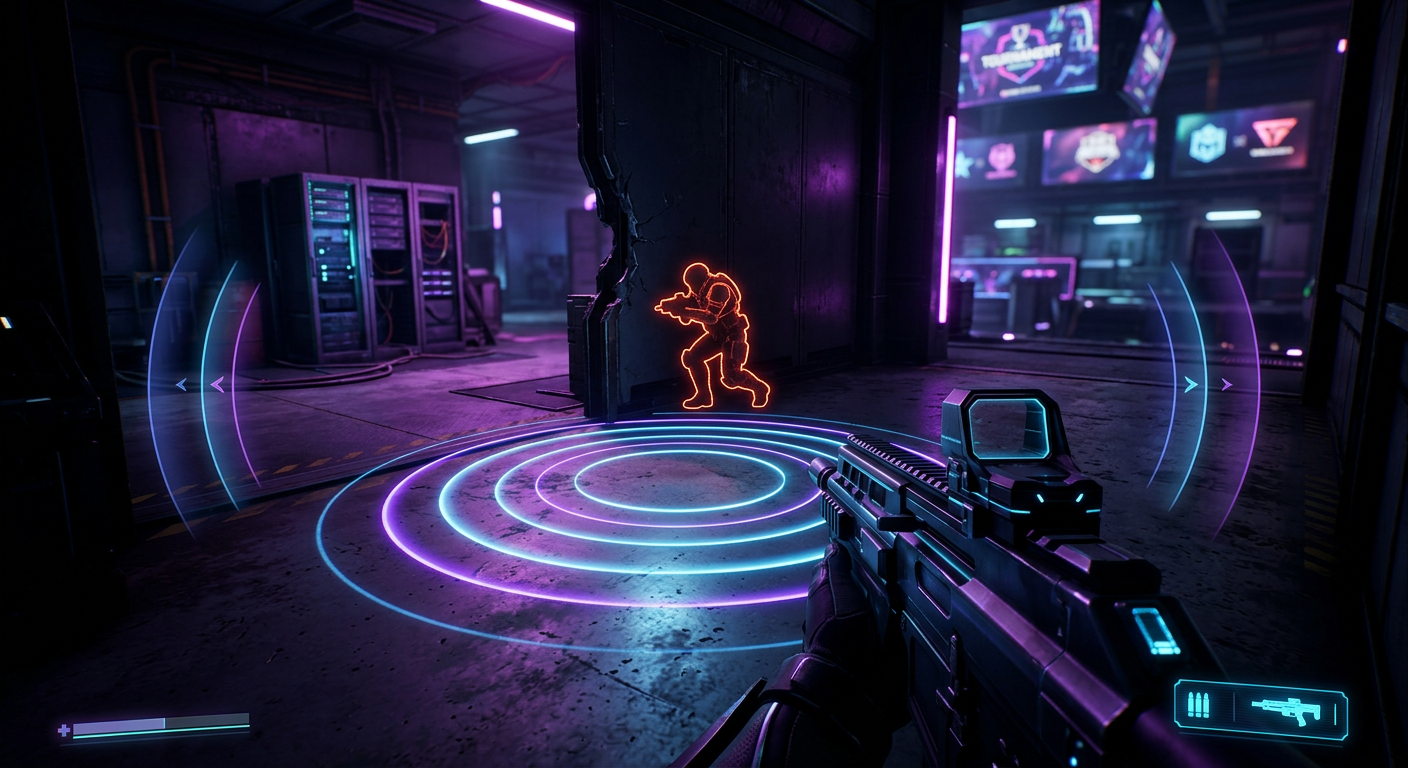
It cuts out unnecessary noise, sharpens directional cues, and makes footsteps stand out so you can react before your opponent even knows you’re there.
Includes:
• Optimized preset for competitive play
• Step-by-step audio setup guide
• Tuned for clarity, positioning, and consistency
Plug it in. Load it up. Start hearing what others can’t.

Build Your Footstep Advantage In Seconds
Select your headset, game, and playstyle — and instantly generate your custom audio profile.
Free beta access — no guesswork, no manual EQ tweaking.
Enhance directional clarity and movement detection during fast-paced engagements.
This tuning focuses on separating subtle positional cues from heavy combat noise to improve reaction timing and spatial awareness.
Designed for large-scale environments where sound distance and positioning matter.
Experience clearer environmental layering, improved vertical awareness, and better perception of approaching threats across open combat zones.
Reduce low-frequency masking and bring out movement textures that are often lost during chaotic moments.
This profile helps footsteps feel more defined and easier to track in complex interior and urban spaces.
Balance weapon effects, ambience, and movement cues to create a more controlled listening experience.
Ideal for players who want consistent awareness across varied surfaces, structures, and map conditions.

What You Get
Step-by-step setup (Sonar + FXSound)
In-game settings for maximum awareness
What to listen for in real matches
Tuned specifically for each major FPS game.
Focused on footsteps, positioning, and vertical audio
Access to tournament level pretunes.
Easy to import and use instantly
Players missing key audio cues
Ranked / competitive grinders
Anyone who wants more control in fights

📩 Instant Delivery
After purchase or signup, you’ll get:
The full audio guide
All preset files
Instant access in your customer portal — use it anytime, anywhere
Hear enemies sooner
React faster
Win more fights
Optimized audio tuning helps reveal the environmental detail that modern game designs are built around — transforming how players perceive space, tension, and movement.

Updates and limited events change what you need to hear. The November 7 Fortune Sprite Variants event adds new sound elements across the Island during set windows, and that matters when you depend on footsteps and callouts. This post explains why those changes affect your listening, where new sounds interfere or help, and what you can do immediately to keep hearing the things that matter most. Steps: 1. Note the event windows and expected sounds so you know when to focus on audio adjustments. 2. Check your headset and game audio settings before you play in the event windows to avoid surprises. What changed Fortnite added Fortune Sprite Variants on November 7 and scheduled them to appear during two set windows each day. These variants bring new music and effects tied to the Sprite appearances and limited time items. When the game introduces new ambient elements they can mask quiet cues like distant footsteps or soft callouts unless you tune your audio for clarity. Steps: 1. Listen for new ambient tracks in quiet parts of the map so you can hear how they overlap with footsteps. 2. Switch to a neutral EQ profile while you test so you can hear which frequencies the Sprites occupy. Why it matters New event sounds change the balance of the audio mix. Sounds that share frequency ranges with footsteps or voice callouts will make those cues harder to detect. You lose time and positional accuracy when you misidentify or miss a cue. Small tuning steps regain that focus so you can react reliably. Steps: 1. Identify which cues you miss most during the event by playing short practice matches. 2. Prioritize tuning for footsteps and voice callouts over music and ambient sounds when you need competitive advantage. Tune for clarity EQ and selective attenuation let you carve out space for the sounds that matter. Boosting narrow bands where footsteps live and gently reducing competing bands for music will separate cues from the new Sprite effects. You do not need exotic gear to improve clarity. Simple, repeatable adjustments on a headset or through software will help you hear more reliably during the event windows. Steps: 1. Create a temporary EQ preset and save it so you can switch quickly when the Sprite windows begin. 2. Raise the mid low frequencies where footsteps tend to sit and lower overlapping music bands by a small amount. Test in game Testing inside the game during the event windows tells you what actually works. Audio that sounds right in menus can behave differently on the Island with Sprites and items active. Run short matches or drop in non ranked lobbies to verify that footsteps and callouts remain audible with the event sounds present. Steps: 1. Drop into a low pressure match during 2 4 PM ET or 9 11 PM ET to hear how Sprites affect the mix. 2. Adjust your preset after each drop until footsteps and teammate calls are clearly audible. Practical tools Use tools that let you save and switch presets quickly. Presets keep your competitive profile intact and let you revert to regular settings after the event. If you want a quicker path to clarity consider per game preset packs and custom per player tunes sold through the store. These are built to prioritize the sounds players rely on most. Steps: 1. Install a preset manager or use your headset software to store multiple EQ profiles. 2. Buy a per game preset pack or order a custom tune if you prefer a tailored starting point. Keep practicing Listening is a skill. The same preset will behave differently as your opponents and map dynamics change. Make small adjustments and keep a short list of tweaks that work in different situations. If you want more detailed steps on audio updates and what to do after a change, read practical guidance likeAudio update notes and practical steps to hear more. Steps: 1. Record your own testing sessions and listen back to identify cues you missed. 2. Refine your preset after every session and keep a log of settings that worked during event windows. Final reminders Fortune Sprite Variants run at specific times and bring extra sound elements that can mask critical cues. Tune proactively and test during the event windows to stay competitive. If you want live tuning help, consider Athlete Audio Labs Cloud Edition which runs on Windows in open beta and lets you type what you want to hear while Peter builds a tune on cloud servers (7 days free, then [AMOUNT_1]for a full year). Steps: 1. Plan sessions around the Sprite windows to learn their impact on audio. 2. Use saved presets to switch quickly between event and non event profiles. Keep reading scum Audio Changes November Update Audio Update Changes For Hearing More Want these Fortnite settings dialed in for your exact headset? Athlete Audio Labs is now in beta. Type what you want to hear, like clearer footsteps or voices, and Peter, our AI audio engineer, tunes your sound live on our cloud servers. Try the Labs beta free → 7 days free, then $25 for a full year (2,500 beta spots). Windows 10 & 11.
Updates and limited events change what you need to hear. The November 7 Fortune Sprite Variants event adds new sound elements across the Island during set windows, and that matters when you depend on footsteps and callouts. This post explains why those changes affect your listening, where new sounds interfere or help, and what you can do immediately to keep hearing the things that matter most. Steps: 1. Note the event windows and expected sounds so you know when to focus on audio adjustments. 2. Check your headset and game audio settings before you play in the event windows to avoid surprises. What changed Fortnite added Fortune Sprite Variants on November 7 and scheduled them to appear during two set windows each day. These variants bring new music and effects tied to the Sprite appearances and limited time items. When the game introduces new ambient elements they can mask quiet cues like distant footsteps or soft callouts unless you tune your audio for clarity. Steps: 1. Listen for new ambient tracks in quiet parts of the map so you can hear how they overlap with footsteps. 2. Switch to a neutral EQ profile while you test so you can hear which frequencies the Sprites occupy. Why it matters New event sounds change the balance of the audio mix. Sounds that share frequency ranges with footsteps or voice callouts will make those cues harder to detect. You lose time and positional accuracy when you misidentify or miss a cue. Small tuning steps regain that focus so you can react reliably. Steps: 1. Identify which cues you miss most during the event by playing short practice matches. 2. Prioritize tuning for footsteps and voice callouts over music and ambient sounds when you need competitive advantage. Tune for clarity EQ and selective attenuation let you carve out space for the sounds that matter. Boosting narrow bands where footsteps live and gently reducing competing bands for music will separate cues from the new Sprite effects. You do not need exotic gear to improve clarity. Simple, repeatable adjustments on a headset or through software will help you hear more reliably during the event windows. Steps: 1. Create a temporary EQ preset and save it so you can switch quickly when the Sprite windows begin. 2. Raise the mid low frequencies where footsteps tend to sit and lower overlapping music bands by a small amount. Test in game Testing inside the game during the event windows tells you what actually works. Audio that sounds right in menus can behave differently on the Island with Sprites and items active. Run short matches or drop in non ranked lobbies to verify that footsteps and callouts remain audible with the event sounds present. Steps: 1. Drop into a low pressure match during 2 4 PM ET or 9 11 PM ET to hear how Sprites affect the mix. 2. Adjust your preset after each drop until footsteps and teammate calls are clearly audible. Practical tools Use tools that let you save and switch presets quickly. Presets keep your competitive profile intact and let you revert to regular settings after the event. If you want a quicker path to clarity consider per game preset packs and custom per player tunes sold through the store. These are built to prioritize the sounds players rely on most. Steps: 1. Install a preset manager or use your headset software to store multiple EQ profiles. 2. Buy a per game preset pack or order a custom tune if you prefer a tailored starting point. Keep practicing Listening is a skill. The same preset will behave differently as your opponents and map dynamics change. Make small adjustments and keep a short list of tweaks that work in different situations. If you want more detailed steps on audio updates and what to do after a change, read practical guidance likeAudio update notes and practical steps to hear more. Steps: 1. Record your own testing sessions and listen back to identify cues you missed. 2. Refine your preset after every session and keep a log of settings that worked during event windows. Final reminders Fortune Sprite Variants run at specific times and bring extra sound elements that can mask critical cues. Tune proactively and test during the event windows to stay competitive. If you want live tuning help, consider Athlete Audio Labs Cloud Edition which runs on Windows in open beta and lets you type what you want to hear while Peter builds a tune on cloud servers (7 days free, then [AMOUNT_1]for a full year). Steps: 1. Plan sessions around the Sprite windows to learn their impact on audio. 2. Use saved presets to switch quickly between event and non event profiles. Keep reading scum Audio Changes November Update Audio Update Changes For Hearing More Want these Fortnite settings dialed in for your exact headset? Athlete Audio Labs is now in beta. Type what you want to hear, like clearer footsteps or voices, and Peter, our AI audio engineer, tunes your sound live on our cloud servers. Try the Labs beta free → 7 days free, then $25 for a full year (2,500 beta spots). Windows 10 & 11.

A recent Fortnite event announcement changed what you will hear in some live matches and introduced a One Piece themed competition. Audio changes matter in those moments where a single sound tells you where an opponent is or when an event triggers. This guide explains why small audio tweaks matter, where the new live content can affect what you hear, and practical steps you can take right now to improve clarity on your PC headset. Steps: 1. Read the Compete Tab on the Fortnite news page to note event timing and audio cues https://www.fortnite.com/news. 2. Check your current in game audio profile so you know how footsteps and effects are balanced. 3. Decide which sounds you want to prioritize: footsteps, callouts, or event cues. 4. Prepare to test during a live One Piece: Zoro Cup match where event audio may change the mix. Why small changes matter Competitive matches hinge on being the first to hear and identify critical sounds. A subtle boost in the frequencies where footsteps and gun clicks live can be the difference between finding cover and getting caught out. Updates that bring live events or themed content can change the mix of music, crowd noise and special effects, masking the sounds you rely on. Steps: 1. Identify a short list of sounds you consider critical for your role and playstyle. 2. Note how music and live event audio compete with these sounds in the current build. 3. Pick one frequency band to test boosting or cutting during warm up. Where the update affects sound The One Piece: Zoro Cup is a live event running in Duos Battle Royale and Duos Zero Build modes and may add event specific audio layers on top of the regular game mix. Top regional performers receive the Roronoa Zoro Outfit, and details are listed in the Compete Tab. Live events like this often introduce music stings, announcer lines or special effects that fight for attention with footsteps and callouts. Expect brief periods where clarity needs active adjustment. Steps: 1. Open the Compete Tab in the game to see when matches with the new event audio will run. 2. Listen for new stings and announcer cues during a warm up to understand when they appear. 3. Note moments when those cues mask footsteps so you can target adjustments for those windows. Tune for footsteps Footsteps tend to live in a narrow frequency band and can be brought forward without raising overall volume. Targeted equalization makes them pop against music and explosions. A small reduction in competing low mid energy and a narrow boost where the footstep transient lives will help you locate opponents more reliably. Steps: 1. Mute in game music if the option exists to isolate footsteps during a test. 2. Boost a narrow band where footsteps sit while playing a warm up match and listen for improved positional clarity. 3. Reduce nearby low mid buildup that covers transient detail. 4. Revert or soften the changes if environmental effects or voice lines become too prominent. Tune for callouts Voice callouts and announcer lines occupy different frequencies than footsteps and need a different approach. Clarity comes from making the human voice stand out, not from overall loudness. A focused mid range lift combined with a slight cut in competing noisy bands can make callouts easy to pick out during chaotic moments. Steps: 1. Raise mids where the human voice sits during a match to make team callouts clearer. 2. Cut harsh frequencies that make voices sound sibilant or muddy. 3. Test adjustments in a full match and note whether callouts remain clear during event music. Use cloud tuning tools If you want quicker, iterative adjustments you can try cloud based tuning tools that build a custom profile from simple requests. These tools run processing on servers close to listeners to keep the experience smooth. A live One Piece event is a good time to experiment with a tailored tune that prioritizes footsteps and callouts while letting event audio breathe. Steps: 1. Try a cloud tuning session to generate a headset and game specific profile that focuses on clarity. 2. Apply the generated profile in a warm up match and listen for immediate differences in footsteps and voices. 3. Refine the profile so it balances event cues with competitive sounds. 4. Save the refined profile for use during future live events. Post update checks After any update or live event rollout check that your settings and profiles still deliver the clarity you need. Event audio can be rolled in or adjusted in later patches. Track how new content affects your mix and keep a short list of favorite profiles for different situations like solo queue, duos and event matches. Steps: 1. Play one match immediately after an update to sample any new or changed audio layers. 2. Compare your preferred profile against the default to confirm it still improves critical sounds. 3. Keep a backup of a previously working profile in case you need to switch quickly. 4. Adjust profiles when event audio or announcer levels change in future updates. Where to go next If you want more guided tuning and headset specific profiles try a cloud based solution that builds a custom tune from plain English requests and runs processing on servers placed near listeners. You can also find presets and custom per player tunes in the store. For an in depth look at recent audio work and practical steps to hear more see this post:Audio Update Changes For Hearing More. Athlete Audio Labs offers a cloud edition in open beta if you want to test custom cloud tuning for your headset and game. Steps: 1. Read the linked article for deeper context on audio updates and practical fixes. 2. Try a preset pack that matches your headset and game to get a baseline improvement quickly. 3. Consider a custom per player tune if you want a profile built specifically for your setup. 4. Download Athlete Audio Labs cloud edition beta to test live cloud tuning sessions. Keep reading Audio update notes and practical steps to hear more scum Audio Changes November Update Want these Fortnite settings dialed in for your exact headset? Athlete Audio Labs is now in beta. Type what you want to hear, like clearer footsteps or voices, and Peter, our AI audio engineer, tunes your sound live on our cloud servers. Try the Labs beta free → 7 days free, then $25 for a full year (2,500 beta spots). Windows 10 & 11.
A recent Fortnite event announcement changed what you will hear in some live matches and introduced a One Piece themed competition. Audio changes matter in those moments where a single sound tells you where an opponent is or when an event triggers. This guide explains why small audio tweaks matter, where the new live content can affect what you hear, and practical steps you can take right now to improve clarity on your PC headset. Steps: 1. Read the Compete Tab on the Fortnite news page to note event timing and audio cues https://www.fortnite.com/news. 2. Check your current in game audio profile so you know how footsteps and effects are balanced. 3. Decide which sounds you want to prioritize: footsteps, callouts, or event cues. 4. Prepare to test during a live One Piece: Zoro Cup match where event audio may change the mix. Why small changes matter Competitive matches hinge on being the first to hear and identify critical sounds. A subtle boost in the frequencies where footsteps and gun clicks live can be the difference between finding cover and getting caught out. Updates that bring live events or themed content can change the mix of music, crowd noise and special effects, masking the sounds you rely on. Steps: 1. Identify a short list of sounds you consider critical for your role and playstyle. 2. Note how music and live event audio compete with these sounds in the current build. 3. Pick one frequency band to test boosting or cutting during warm up. Where the update affects sound The One Piece: Zoro Cup is a live event running in Duos Battle Royale and Duos Zero Build modes and may add event specific audio layers on top of the regular game mix. Top regional performers receive the Roronoa Zoro Outfit, and details are listed in the Compete Tab. Live events like this often introduce music stings, announcer lines or special effects that fight for attention with footsteps and callouts. Expect brief periods where clarity needs active adjustment. Steps: 1. Open the Compete Tab in the game to see when matches with the new event audio will run. 2. Listen for new stings and announcer cues during a warm up to understand when they appear. 3. Note moments when those cues mask footsteps so you can target adjustments for those windows. Tune for footsteps Footsteps tend to live in a narrow frequency band and can be brought forward without raising overall volume. Targeted equalization makes them pop against music and explosions. A small reduction in competing low mid energy and a narrow boost where the footstep transient lives will help you locate opponents more reliably. Steps: 1. Mute in game music if the option exists to isolate footsteps during a test. 2. Boost a narrow band where footsteps sit while playing a warm up match and listen for improved positional clarity. 3. Reduce nearby low mid buildup that covers transient detail. 4. Revert or soften the changes if environmental effects or voice lines become too prominent. Tune for callouts Voice callouts and announcer lines occupy different frequencies than footsteps and need a different approach. Clarity comes from making the human voice stand out, not from overall loudness. A focused mid range lift combined with a slight cut in competing noisy bands can make callouts easy to pick out during chaotic moments. Steps: 1. Raise mids where the human voice sits during a match to make team callouts clearer. 2. Cut harsh frequencies that make voices sound sibilant or muddy. 3. Test adjustments in a full match and note whether callouts remain clear during event music. Use cloud tuning tools If you want quicker, iterative adjustments you can try cloud based tuning tools that build a custom profile from simple requests. These tools run processing on servers close to listeners to keep the experience smooth. A live One Piece event is a good time to experiment with a tailored tune that prioritizes footsteps and callouts while letting event audio breathe. Steps: 1. Try a cloud tuning session to generate a headset and game specific profile that focuses on clarity. 2. Apply the generated profile in a warm up match and listen for immediate differences in footsteps and voices. 3. Refine the profile so it balances event cues with competitive sounds. 4. Save the refined profile for use during future live events. Post update checks After any update or live event rollout check that your settings and profiles still deliver the clarity you need. Event audio can be rolled in or adjusted in later patches. Track how new content affects your mix and keep a short list of favorite profiles for different situations like solo queue, duos and event matches. Steps: 1. Play one match immediately after an update to sample any new or changed audio layers. 2. Compare your preferred profile against the default to confirm it still improves critical sounds. 3. Keep a backup of a previously working profile in case you need to switch quickly. 4. Adjust profiles when event audio or announcer levels change in future updates. Where to go next If you want more guided tuning and headset specific profiles try a cloud based solution that builds a custom tune from plain English requests and runs processing on servers placed near listeners. You can also find presets and custom per player tunes in the store. For an in depth look at recent audio work and practical steps to hear more see this post:Audio Update Changes For Hearing More. Athlete Audio Labs offers a cloud edition in open beta if you want to test custom cloud tuning for your headset and game. Steps: 1. Read the linked article for deeper context on audio updates and practical fixes. 2. Try a preset pack that matches your headset and game to get a baseline improvement quickly. 3. Consider a custom per player tune if you want a profile built specifically for your setup. 4. Download Athlete Audio Labs cloud edition beta to test live cloud tuning sessions. Keep reading Audio update notes and practical steps to hear more scum Audio Changes November Update Want these Fortnite settings dialed in for your exact headset? Athlete Audio Labs is now in beta. Type what you want to hear, like clearer footsteps or voices, and Peter, our AI audio engineer, tunes your sound live on our cloud servers. Try the Labs beta free → 7 days free, then $25 for a full year (2,500 beta spots). Windows 10 & 11.

If you want to hear more in your game, start with what changed and why it matters. Updates can shift how designers mix sounds for weapons, footsteps and events. That affects what you rely on for positioning and decision making. This post explains the audio side of updates, where they matter in play, and concrete steps you can do right now to recover or improve the sounds you need most. Steps: 1. Open your game and listen to the same scenario you know well to spot any differences. 2. Note which sounds feel quieter or less clear compared with your memory. 3. Check the patch or event notes for explicit audio changes before changing settings. Why updates matter Audio updates can rebalance elements so music or explosions sit higher or lower in the mix. That changes audibility for footsteps, voice callouts and other critical cues. When designers rebalance a map or add an event, those decisions change which sounds are masked and which stand out. Knowing that helps you choose which controls to adjust. Steps: 1. Listen for masking where loud sounds cover the quieter cues you need. 2. Compare in game scenarios with and without music or ambient layers when possible. 3. Adjust in game voice and effects sliders to isolate the layer that matters most to you. Which sounds to prioritize Prioritize footsteps and callouts first, then weapon localization, then ambient and music. Footsteps and speech carry positional information you use to win fights and avoid ambushes. If an event or update highlights a new high value target or vehicle, recheck the levels for sounds tied to those events so you can react quickly. Steps: 1. Mute or lower music to raise the relative level of footsteps and speech. 2. Turn up effects or dialogue sliders until voices and footstep distances are more distinct. 3. Test in a live match or a training range to confirm changes under pressure. Use software tuning Software EQ and custom presets let you reshape the mix to emphasize frequencies where footsteps and voices live. Tweaking those bands makes the cues louder relative to other sounds without increasing overall volume. Cloud based tuning can apply a headset specific profile so those enhancements work across different PCs or streaming setups. Steps: 1. Open your headset or sound app EQ and boost the mid and upper bass bands slightly for heavier footstep presence. 2. Cut midrange frequencies if dialogue or music are masking clarity. 3. Save the setting as a named preset so you can switch back quickly if the next update changes the balance. Tune with an assistant An assistant that builds a tune from a plain English request can speed up the process. Tell it what you need to hear and it will produce a starting profile you can refine. That approach works across multiple games and headsets so you do not rebuild a profile from scratch after each update. Steps: 1. Describe the sounds you want louder and the headset you use in one sentence to get an initial profile. 2. Apply the profile in a test map and listen for improved clarity on footsteps and callouts. 3. Iterate on the profile by asking for narrower adjustments such as more distant footsteps or clearer team voice. Event audio and context Special events can introduce new sound cues or change how common cues behave. For example this week’s GTA Online Heist Event features high value targets and new mission audio you need to notice while you get in and get out. When events add cinematic or mission sounds you do not want louder than gameplay cues, use quick presets to rebalance and keep the important cues where you hear them first. Source materials for event details are often on the publisher or platform pages. Steps: 1. Read the event notes or store post for any mention of new audio elements affecting gameplay. 2. Switch to a preset that reduces cinematic layers and raises effects and dialogue. 3. Run a quick in event scenario to confirm footsteps and callouts remain audible during mission audio. Check your chain Your audio chain from game to ears includes the game mix, Windows sound settings, any third party apps, and your headset. Any link can mask or muddy important cues. Verify each link and remove processing that reduces clarity. If you use cloud tuned profiles, they can be applied where they will have the most effect. Steps: 1. Set Windows and game sample rates the same to avoid resampling artifacts. 2. Disable in headset effects that widen or heavily color the sound. 3. Use a cloud tuned profile or per game preset to match the game and headset combination. Final checks After you make changes, test in the scenarios you care about and keep backups of presets. Updates can change engine behavior and you will want a quick way to revert or reapply your best profile. If you want a quicker starting point, try a cloud based tune that adapts to your headset and game and then refine from there. Steps: 1. Play a short match and record mental notes on what still feels quiet or unclear. 2. Save your working preset and export or copy the short link if your app supports it. 3. Revisit your settings after the next update and repeat the quick checks. Athlete Audio Labs If you want live, cloud based tuning that starts from a plain English request, Athlete Audio Labs Cloud Edition offers a free seven day trial and then a yearly plan. It includes per game preset packs and custom per player tunes sold through the store. Use a cloud tuned starting point to speed up recovery after updates and events and to keep critical sounds clear on the headset you already own. Steps: 1. Try a cloud edition trial to generate a tune for your headset and favorite game. 2. Apply a per game preset pack to check whether common updates change the mix for that title. 3. Purchase a custom per player tune if you want a profile built for your exact needs. References Publisher or platform posts list event details such as The Heist Event featuring Take Down the Kortz Center and more high value targets in GTA Online. Source: https://steamstore a.akamaihd.net/news/externalpost/steam_community_announcements/1848664643345922 For practical steps to hear more after updates see the notes here:Audio update notes and practical steps to hear more. Steps: 1. Bookmark the event or patch note page for quick reference before you change settings. 2. Apply the practical steps from the linked notes during your next tuning session. Keep reading Fortnite Audio Update Changes For Hearing More scum Audio Changes November Update Want settings dialed in for your exact headset and game? Athlete Audio Labs is now in beta. Type what you want to hear, like clearer footsteps or voices, and Peter, our AI audio engineer, tunes your sound live on our cloud servers. Try the Labs beta free → 7 days free, then $25 for a full year (2,500 beta spots). Windows 10 & 11. Related: Fortnite Audio Update: Hear More In Game Related: Fortnite Audio Changes For Hearing More
If you want to hear more in your game, start with what changed and why it matters. Updates can shift how designers mix sounds for weapons, footsteps and events. That affects what you rely on for positioning and decision making. This post explains the audio side of updates, where they matter in play, and concrete steps you can do right now to recover or improve the sounds you need most. Steps: 1. Open your game and listen to the same scenario you know well to spot any differences. 2. Note which sounds feel quieter or less clear compared with your memory. 3. Check the patch or event notes for explicit audio changes before changing settings. Why updates matter Audio updates can rebalance elements so music or explosions sit higher or lower in the mix. That changes audibility for footsteps, voice callouts and other critical cues. When designers rebalance a map or add an event, those decisions change which sounds are masked and which stand out. Knowing that helps you choose which controls to adjust. Steps: 1. Listen for masking where loud sounds cover the quieter cues you need. 2. Compare in game scenarios with and without music or ambient layers when possible. 3. Adjust in game voice and effects sliders to isolate the layer that matters most to you. Which sounds to prioritize Prioritize footsteps and callouts first, then weapon localization, then ambient and music. Footsteps and speech carry positional information you use to win fights and avoid ambushes. If an event or update highlights a new high value target or vehicle, recheck the levels for sounds tied to those events so you can react quickly. Steps: 1. Mute or lower music to raise the relative level of footsteps and speech. 2. Turn up effects or dialogue sliders until voices and footstep distances are more distinct. 3. Test in a live match or a training range to confirm changes under pressure. Use software tuning Software EQ and custom presets let you reshape the mix to emphasize frequencies where footsteps and voices live. Tweaking those bands makes the cues louder relative to other sounds without increasing overall volume. Cloud based tuning can apply a headset specific profile so those enhancements work across different PCs or streaming setups. Steps: 1. Open your headset or sound app EQ and boost the mid and upper bass bands slightly for heavier footstep presence. 2. Cut midrange frequencies if dialogue or music are masking clarity. 3. Save the setting as a named preset so you can switch back quickly if the next update changes the balance. Tune with an assistant An assistant that builds a tune from a plain English request can speed up the process. Tell it what you need to hear and it will produce a starting profile you can refine. That approach works across multiple games and headsets so you do not rebuild a profile from scratch after each update. Steps: 1. Describe the sounds you want louder and the headset you use in one sentence to get an initial profile. 2. Apply the profile in a test map and listen for improved clarity on footsteps and callouts. 3. Iterate on the profile by asking for narrower adjustments such as more distant footsteps or clearer team voice. Event audio and context Special events can introduce new sound cues or change how common cues behave. For example this week’s GTA Online Heist Event features high value targets and new mission audio you need to notice while you get in and get out. When events add cinematic or mission sounds you do not want louder than gameplay cues, use quick presets to rebalance and keep the important cues where you hear them first. Source materials for event details are often on the publisher or platform pages. Steps: 1. Read the event notes or store post for any mention of new audio elements affecting gameplay. 2. Switch to a preset that reduces cinematic layers and raises effects and dialogue. 3. Run a quick in event scenario to confirm footsteps and callouts remain audible during mission audio. Check your chain Your audio chain from game to ears includes the game mix, Windows sound settings, any third party apps, and your headset. Any link can mask or muddy important cues. Verify each link and remove processing that reduces clarity. If you use cloud tuned profiles, they can be applied where they will have the most effect. Steps: 1. Set Windows and game sample rates the same to avoid resampling artifacts. 2. Disable in headset effects that widen or heavily color the sound. 3. Use a cloud tuned profile or per game preset to match the game and headset combination. Final checks After you make changes, test in the scenarios you care about and keep backups of presets. Updates can change engine behavior and you will want a quick way to revert or reapply your best profile. If you want a quicker starting point, try a cloud based tune that adapts to your headset and game and then refine from there. Steps: 1. Play a short match and record mental notes on what still feels quiet or unclear. 2. Save your working preset and export or copy the short link if your app supports it. 3. Revisit your settings after the next update and repeat the quick checks. Athlete Audio Labs If you want live, cloud based tuning that starts from a plain English request, Athlete Audio Labs Cloud Edition offers a free seven day trial and then a yearly plan. It includes per game preset packs and custom per player tunes sold through the store. Use a cloud tuned starting point to speed up recovery after updates and events and to keep critical sounds clear on the headset you already own. Steps: 1. Try a cloud edition trial to generate a tune for your headset and favorite game. 2. Apply a per game preset pack to check whether common updates change the mix for that title. 3. Purchase a custom per player tune if you want a profile built for your exact needs. References Publisher or platform posts list event details such as The Heist Event featuring Take Down the Kortz Center and more high value targets in GTA Online. Source: https://steamstore a.akamaihd.net/news/externalpost/steam_community_announcements/1848664643345922 For practical steps to hear more after updates see the notes here:Audio update notes and practical steps to hear more. Steps: 1. Bookmark the event or patch note page for quick reference before you change settings. 2. Apply the practical steps from the linked notes during your next tuning session. Keep reading Fortnite Audio Update Changes For Hearing More scum Audio Changes November Update Want settings dialed in for your exact headset and game? Athlete Audio Labs is now in beta. Type what you want to hear, like clearer footsteps or voices, and Peter, our AI audio engineer, tunes your sound live on our cloud servers. Try the Labs beta free → 7 days free, then $25 for a full year (2,500 beta spots). Windows 10 & 11. Related: Fortnite Audio Update: Hear More In Game Related: Fortnite Audio Changes For Hearing More

The November 9 SCUM update packs ways the game is changing beyond cosmetics. Some changes are directly relevant to audio for competitive players, notably Proton support and controller support. Other items like Photo Mode and revamped tattoos do not change sound but matter for workflow when you are testing settings. This post focuses on what you can do right now to protect or improve your ability to hear footsteps and callouts after the update. It assumes you use a PC and want practical steps you can apply before, during and after a play session. Steps: 1. Check the official Steam announcement to confirm features and timing. 2. Back up any custom audio or config files you use for the game. 3. Plan a short test session after installing the update to compare audio. Key changes overview The headline items in the update are revamped tattoos, Photo Mode, controller support, Proton support, plus bugfixes and quality of life improvements. Proton support is notable because it affects how the game runs on certain setups and can change the audio path on some systems. Controller support can shift how input and audio events are handled in the game and in overlays. Bugfixes and quality of life improvements often include fixes to audio triggers and mixing even when not listed explicitly. Steps: 1. Read the Steam update preview to see the full list of changes. 2. Note Proton support if you run the game through compatibility layers. 3. Observe any new input behavior if you also use controllers. Why Proton support matters Proton support means more players will run the Windows build through a compatibility layer on Linux. That can change which audio backend the game uses and may alter routing or volume behavior for certain headsets. For players who use alternative OS setups the result can be small or it can require retuning. Steps: 1. Verify which audio backend the game is using after the update on your system. 2. Test footsteps and distant sounds at low volume levels to check for changes. 3. Adjust your system audio routing if you notice missing channels or swapped outputs. Controller support effects Controller support improves accessibility but can change how the game signals events if developers route audio or haptics differently. In some cases a controller can become the default device for certain game audio streams, so verify output selection after you update. Competitive players who switch between controller and mouse and keyboard should confirm their preferred audio device stays selected in game and in any overlay or capture software. Steps: 1. Plug and unplug any controllers and confirm the active audio output in the game settings. 2. Lock your preferred audio device in Steam or your OS if the game keeps switching. 3. Run a quick in game audio test sequence to confirm footsteps and environment sounds remain consistent. Bugfixes and quality Bugfixes and quality of life updates often include small audio fixes that change loudness, occlusion, or how layers are mixed. These updates can improve clarity or temporarily alter balances you depended on. When the game receives many minor fixes at once keep a checklist of what you care about most so you can quickly spot any regressions. Steps: 1. List the sound sources you depend on most such as footsteps voice callouts and distant gunfire. 2. Compare those sources before and after the update using identical scenarios. 3. Revert to saved audio configurations if you detect a regression. Tune your setup Use a repeatable method to compare audio across updates. Start with a neutral baseline profile that you can return to, then make one change at a time so you know what affects clarity. If you want a quick set of practical steps you can follow beyond this guide see Audio update notes and practical steps to hear more. If you want to push clarity further consider cloud based tuning tools that create per headset and per game adjustments from plain English requests. Peter in Athlete Audio Labs builds a tune for your headset and game from a plain English request and the Labs cloud edition runs on servers placed close to listeners worldwide. Steps: 1. Create and save a baseline EQ or preset before installing the update. 2. Run controlled in game tests that reproduce the scenarios you rely on competitively. 3. Apply one change at a time and save the result so you can compare. Immediate troubleshooting If something sounds worse after the update start with the simple checks. Confirm the game output device and system volume. Disable overlays and capture tools that can change routing. If you use third party audio tools verify they are compatible with the new game version. If audio dropouts or swapped channels persist consider rolling back to your saved config while you collect details for support. Capture notes about the issue and the steps that reproduce it so you can report the problem effectively. Steps: 1. Confirm the game is using the correct output device and sample rate in system settings. 2. Disable overlays and close capture software while testing. 3. Restore your baseline preset if you need to return to a known good state. Final notes Small updates can change how you hear critical sounds. Treat each update as a chance to verify and improve rather than assume nothing changed. Keep configs backed up and use repeatable tests to track regressions. If you want live cloud based tuning to match your headset and game consider trying Athlete Audio Labs Cloud Edition during the open beta to create tailored per player tunes and presets. Steps: 1. Back up config files and presets before updating the game. 2. Run short controlled tests after each update to confirm audio behavior. 3. Try cloud based tuning if you need a tailored per headset solution. Keep reading Audio update notes and practical steps to hear more Apex Legends Audio Update Changes For Clarity Apex Legends Audio Update Changes You Should Use Want settings dialed in for your exact headset and game? Athlete Audio Labs is now in beta. Type what you want to hear, like clearer footsteps or voices, and Peter, our AI audio engineer, tunes your sound live on our cloud servers. Try the Labs beta free → 7 days free, then $25 for a full year (2,500 beta spots). Windows 10 & 11. Related: Audio Update Changes For Hearing More Related: Fortnite Audio Update: Hear More In Game Related: Fortnite Audio Changes For Hearing More
The November 9 SCUM update packs ways the game is changing beyond cosmetics. Some changes are directly relevant to audio for competitive players, notably Proton support and controller support. Other items like Photo Mode and revamped tattoos do not change sound but matter for workflow when you are testing settings. This post focuses on what you can do right now to protect or improve your ability to hear footsteps and callouts after the update. It assumes you use a PC and want practical steps you can apply before, during and after a play session. Steps: 1. Check the official Steam announcement to confirm features and timing. 2. Back up any custom audio or config files you use for the game. 3. Plan a short test session after installing the update to compare audio. Key changes overview The headline items in the update are revamped tattoos, Photo Mode, controller support, Proton support, plus bugfixes and quality of life improvements. Proton support is notable because it affects how the game runs on certain setups and can change the audio path on some systems. Controller support can shift how input and audio events are handled in the game and in overlays. Bugfixes and quality of life improvements often include fixes to audio triggers and mixing even when not listed explicitly. Steps: 1. Read the Steam update preview to see the full list of changes. 2. Note Proton support if you run the game through compatibility layers. 3. Observe any new input behavior if you also use controllers. Why Proton support matters Proton support means more players will run the Windows build through a compatibility layer on Linux. That can change which audio backend the game uses and may alter routing or volume behavior for certain headsets. For players who use alternative OS setups the result can be small or it can require retuning. Steps: 1. Verify which audio backend the game is using after the update on your system. 2. Test footsteps and distant sounds at low volume levels to check for changes. 3. Adjust your system audio routing if you notice missing channels or swapped outputs. Controller support effects Controller support improves accessibility but can change how the game signals events if developers route audio or haptics differently. In some cases a controller can become the default device for certain game audio streams, so verify output selection after you update. Competitive players who switch between controller and mouse and keyboard should confirm their preferred audio device stays selected in game and in any overlay or capture software. Steps: 1. Plug and unplug any controllers and confirm the active audio output in the game settings. 2. Lock your preferred audio device in Steam or your OS if the game keeps switching. 3. Run a quick in game audio test sequence to confirm footsteps and environment sounds remain consistent. Bugfixes and quality Bugfixes and quality of life updates often include small audio fixes that change loudness, occlusion, or how layers are mixed. These updates can improve clarity or temporarily alter balances you depended on. When the game receives many minor fixes at once keep a checklist of what you care about most so you can quickly spot any regressions. Steps: 1. List the sound sources you depend on most such as footsteps voice callouts and distant gunfire. 2. Compare those sources before and after the update using identical scenarios. 3. Revert to saved audio configurations if you detect a regression. Tune your setup Use a repeatable method to compare audio across updates. Start with a neutral baseline profile that you can return to, then make one change at a time so you know what affects clarity. If you want a quick set of practical steps you can follow beyond this guide see Audio update notes and practical steps to hear more. If you want to push clarity further consider cloud based tuning tools that create per headset and per game adjustments from plain English requests. Peter in Athlete Audio Labs builds a tune for your headset and game from a plain English request and the Labs cloud edition runs on servers placed close to listeners worldwide. Steps: 1. Create and save a baseline EQ or preset before installing the update. 2. Run controlled in game tests that reproduce the scenarios you rely on competitively. 3. Apply one change at a time and save the result so you can compare. Immediate troubleshooting If something sounds worse after the update start with the simple checks. Confirm the game output device and system volume. Disable overlays and capture tools that can change routing. If you use third party audio tools verify they are compatible with the new game version. If audio dropouts or swapped channels persist consider rolling back to your saved config while you collect details for support. Capture notes about the issue and the steps that reproduce it so you can report the problem effectively. Steps: 1. Confirm the game is using the correct output device and sample rate in system settings. 2. Disable overlays and close capture software while testing. 3. Restore your baseline preset if you need to return to a known good state. Final notes Small updates can change how you hear critical sounds. Treat each update as a chance to verify and improve rather than assume nothing changed. Keep configs backed up and use repeatable tests to track regressions. If you want live cloud based tuning to match your headset and game consider trying Athlete Audio Labs Cloud Edition during the open beta to create tailored per player tunes and presets. Steps: 1. Back up config files and presets before updating the game. 2. Run short controlled tests after each update to confirm audio behavior. 3. Try cloud based tuning if you need a tailored per headset solution. Keep reading Audio update notes and practical steps to hear more Apex Legends Audio Update Changes For Clarity Apex Legends Audio Update Changes You Should Use Want settings dialed in for your exact headset and game? Athlete Audio Labs is now in beta. Type what you want to hear, like clearer footsteps or voices, and Peter, our AI audio engineer, tunes your sound live on our cloud servers. Try the Labs beta free → 7 days free, then $25 for a full year (2,500 beta spots). Windows 10 & 11. Related: Audio Update Changes For Hearing More Related: Fortnite Audio Update: Hear More In Game Related: Fortnite Audio Changes For Hearing More

Game updates change what you need to hear. The recent Apex Legends | Godzilla Event moves action and noise across Storm Point and adds a new layer of environmental threat. That changes how footsteps, gunfire and voice callouts sit in the mix. This post explains why those changes matter for your audio awareness and gives concrete steps you can take now to keep hearing what counts in matches and on stream. Steps: 1. Read the patch related content and event notes from the game to know what changed. 2. Test audio in a live lobby to hear how the event ambience affects footsteps and callouts. 3. Decide which sounds you depend on most for your play style. Why it matters A big environmental event shifts the background energy in maps. When the map noise floor rises players lose contrast between quiet cues like footsteps and louder cues like explosions. That makes target detection and timing harder. You rely on small timing differences and pan cues to locate enemies. If ambient roar from an event masks low level sounds you lose reaction time and situational awareness. Steps: 1. Listen for differences in ambience between Storm Point and other maps during warm up. 2. Identify which cues you miss more often since the update started. 3. Note whether your headset or speaker makes low frequency background noise louder than it needs to be. Footsteps and monsters Footsteps occupy lower to mid frequency bands that can be swamped by environmental rumble. The Godzilla event adds stomping and other heavy sounds that sit in similar ranges and reduce contrast. This matters in close quarters on Storm Point where survival depends on hearing a tweak in volume or a left right pan. Improving those bands makes footsteps pop out from the background so you can react earlier. Steps: 1. Reduce bass and low mid energy in your headset EQ to lower the event rumble. 2. Boost narrow bands around typical footstep frequencies to increase contrast. 3. Switch to a headset profile that emphasizes mid high detail when you expect close fights. Voice and callouts Team voice and in game callouts need to remain intelligible even when the map gets loud. Dialogue and callouts are higher in frequency than stomp and rumble, but they lose clarity when the overall mix is denser. Prioritize mid frequency clarity so callouts cut through without making everything else harsh. That helps you hear both teammates and critical game cues at the same time. Steps: 1. Apply a moderate mid range boost that favors human voice frequencies. 2. Lower competing band energy where event noise lives so callouts remain clear. 3. Test voice clarity in a party channel during a quick match to confirm the balance. Preset tuning steps You do not need complex tools to get better clarity. Small targeted EQ moves and switching to a tuned preset improve detection without sacrificing situational fidelity. Presets are useful because they give you a repeatable starting point for a given map or event. If you use presets already, save a variant for Storm Point so you can switch quickly between maps or event modes. Steps: 1. Select a game preset pack for Apex Legends and load a neutral profile. 2. Create a copy and reduce 60 to 120 Hz to tame rumble from the event. 3. Raise a tight band around 2 to 4 kHz to increase voice and footstep clarity. 4. Save and label the preset so you can recall it for Storm Point runs. Try a cloud tune If you want a faster route, use a cloud based tune service that builds a headset and game specific profile from a plain English request. That gets you a focused profile without manual trial and error. Athlete Audio Labs runs a cloud edition in open beta where you type what you want to hear and Peter, our AI audio engineer, builds a live tune on cloud servers close to you. You can test it for seven days free and then choose a full year option. Steps: 1. Open Athlete Audio Labs and describe the clarity you want for Storm Point during the Godzilla event. 2. Apply the cloud tune and join a test match to compare before and after. 3. Adjust the returned preset if you want more voice or more footstep emphasis. 4. Purchase a custom per player tune from the store if you need a dedicated profile. Final adjustments Small checks right before a session make a big difference. Volume, in game audio sliders, and headset placement change how your tune behaves under event noise. Keep a short test routine so you start matches with the same audio baseline and avoid surprises when Storm Point gets loud. Steps: 1. Verify in game master and effects sliders are balanced so your EQ has room to work. 2. Recenter your headset and test left right imaging with a known sound source. 3. Run a quick solo loop on Storm Point to confirm you can hear footsteps and callouts clearly. Closing note Game events like the Apex Legends | Godzilla Event change the audio landscape. You can compensate with focused EQ, presets and cloud based tuning to keep critical sounds audible. If you want to move faster from symptom to solution, try the cloud edition of Athlete Audio Labs for a tailored tune built for your headset and game. Keep reading Apex Legends Audio Update Changes You Should Use Apex Legends Audio Update Changes Apex Legends Audio Update Notes Want these Apex Legends settings dialed in for your exact headset? Athlete Audio Labs is now in beta. Type what you want to hear, like clearer footsteps or voices, and Peter, our AI audio engineer, tunes your sound live on our cloud servers. Try the Labs beta free → 7 days free, then $25 for a full year (2,500 beta spots). Windows 10 & 11. Related: Audio Update: Hear More In Game Related: scum Audio Changes November Update
Game updates change what you need to hear. The recent Apex Legends | Godzilla Event moves action and noise across Storm Point and adds a new layer of environmental threat. That changes how footsteps, gunfire and voice callouts sit in the mix. This post explains why those changes matter for your audio awareness and gives concrete steps you can take now to keep hearing what counts in matches and on stream. Steps: 1. Read the patch related content and event notes from the game to know what changed. 2. Test audio in a live lobby to hear how the event ambience affects footsteps and callouts. 3. Decide which sounds you depend on most for your play style. Why it matters A big environmental event shifts the background energy in maps. When the map noise floor rises players lose contrast between quiet cues like footsteps and louder cues like explosions. That makes target detection and timing harder. You rely on small timing differences and pan cues to locate enemies. If ambient roar from an event masks low level sounds you lose reaction time and situational awareness. Steps: 1. Listen for differences in ambience between Storm Point and other maps during warm up. 2. Identify which cues you miss more often since the update started. 3. Note whether your headset or speaker makes low frequency background noise louder than it needs to be. Footsteps and monsters Footsteps occupy lower to mid frequency bands that can be swamped by environmental rumble. The Godzilla event adds stomping and other heavy sounds that sit in similar ranges and reduce contrast. This matters in close quarters on Storm Point where survival depends on hearing a tweak in volume or a left right pan. Improving those bands makes footsteps pop out from the background so you can react earlier. Steps: 1. Reduce bass and low mid energy in your headset EQ to lower the event rumble. 2. Boost narrow bands around typical footstep frequencies to increase contrast. 3. Switch to a headset profile that emphasizes mid high detail when you expect close fights. Voice and callouts Team voice and in game callouts need to remain intelligible even when the map gets loud. Dialogue and callouts are higher in frequency than stomp and rumble, but they lose clarity when the overall mix is denser. Prioritize mid frequency clarity so callouts cut through without making everything else harsh. That helps you hear both teammates and critical game cues at the same time. Steps: 1. Apply a moderate mid range boost that favors human voice frequencies. 2. Lower competing band energy where event noise lives so callouts remain clear. 3. Test voice clarity in a party channel during a quick match to confirm the balance. Preset tuning steps You do not need complex tools to get better clarity. Small targeted EQ moves and switching to a tuned preset improve detection without sacrificing situational fidelity. Presets are useful because they give you a repeatable starting point for a given map or event. If you use presets already, save a variant for Storm Point so you can switch quickly between maps or event modes. Steps: 1. Select a game preset pack for Apex Legends and load a neutral profile. 2. Create a copy and reduce 60 to 120 Hz to tame rumble from the event. 3. Raise a tight band around 2 to 4 kHz to increase voice and footstep clarity. 4. Save and label the preset so you can recall it for Storm Point runs. Try a cloud tune If you want a faster route, use a cloud based tune service that builds a headset and game specific profile from a plain English request. That gets you a focused profile without manual trial and error. Athlete Audio Labs runs a cloud edition in open beta where you type what you want to hear and Peter, our AI audio engineer, builds a live tune on cloud servers close to you. You can test it for seven days free and then choose a full year option. Steps: 1. Open Athlete Audio Labs and describe the clarity you want for Storm Point during the Godzilla event. 2. Apply the cloud tune and join a test match to compare before and after. 3. Adjust the returned preset if you want more voice or more footstep emphasis. 4. Purchase a custom per player tune from the store if you need a dedicated profile. Final adjustments Small checks right before a session make a big difference. Volume, in game audio sliders, and headset placement change how your tune behaves under event noise. Keep a short test routine so you start matches with the same audio baseline and avoid surprises when Storm Point gets loud. Steps: 1. Verify in game master and effects sliders are balanced so your EQ has room to work. 2. Recenter your headset and test left right imaging with a known sound source. 3. Run a quick solo loop on Storm Point to confirm you can hear footsteps and callouts clearly. Closing note Game events like the Apex Legends | Godzilla Event change the audio landscape. You can compensate with focused EQ, presets and cloud based tuning to keep critical sounds audible. If you want to move faster from symptom to solution, try the cloud edition of Athlete Audio Labs for a tailored tune built for your headset and game. Keep reading Apex Legends Audio Update Changes You Should Use Apex Legends Audio Update Changes Apex Legends Audio Update Notes Want these Apex Legends settings dialed in for your exact headset? Athlete Audio Labs is now in beta. Type what you want to hear, like clearer footsteps or voices, and Peter, our AI audio engineer, tunes your sound live on our cloud servers. Try the Labs beta free → 7 days free, then $25 for a full year (2,500 beta spots). Windows 10 & 11. Related: Audio Update: Hear More In Game Related: scum Audio Changes November Update


